Company Email Signature
Company Email Signature — Help
The Company Email Signature extension lets you create rich-text email signatures that automatically pull in live company and user data. Signatures are selected from the email composer and injected into the email body at send time.
Setting Up Signatures
Company Email Signatures list
Go to Business Central → Search → Company Email Signatures to manage all signatures in your company.
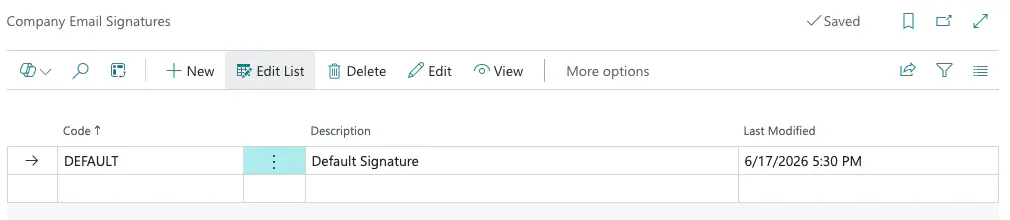
| Column | Description |
|---|---|
| Code | The unique identifier for this signature (up to 10 characters). |
| Description | A short label to help identify the signature’s purpose. |
| Last Modified | The date and time this signature was last saved. |
Select any row and choose Edit (or click the Code) to open the signature editor.
Company Email Signature card
The card page is where you build and edit a signature.
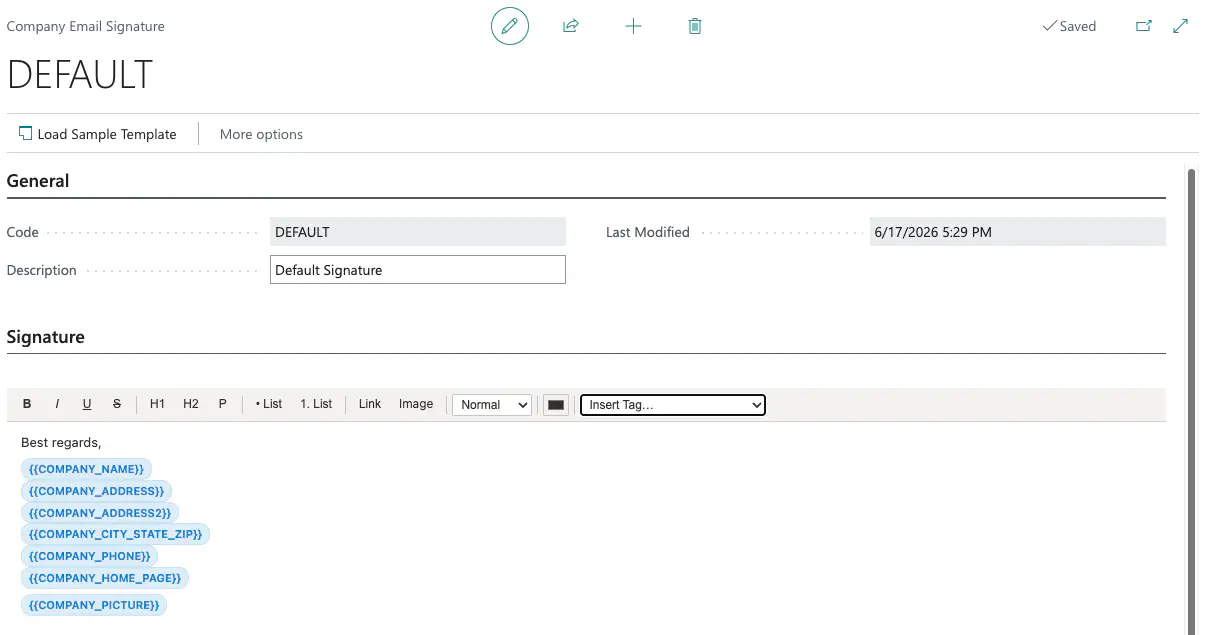
General section
| Field | Description |
|---|---|
| Code | A short unique code for the signature. Can only be set when creating a new record. |
| Description | A brief description of the signature — e.g., Sales team, Support footer. |
| Last Modified | Read-only. Updated automatically whenever the signature is saved. |
Signature section
The rich-text editor lets you format your signature with the toolbar across the top:
- B / I / U / S — Bold, Italic, Underline, Strikethrough
- H1 / H2 / P — Heading 1, Heading 2, Paragraph
- Bullet list / Numbered list
- Link — Insert a hyperlink around selected text
- Image — Embed an image from a file (stored as base64 inside the signature)
- Font size — Small, Normal −, Normal, Normal +, Large, X-Large
- Colour picker — Change text colour
- Insert data tag — Insert a merge tag that is replaced with live data when the signature is applied (see Data tags below)
Actions
| Action | Description |
|---|---|
| Load Sample Template | Replaces the current editor content with a starter template pre-populated with common data tags. Use this as a starting point and customise to suit. |
Data Tags
Data tags are placeholders in your signature that are replaced with real values when a user applies the signature to an email. Insert them using the Insert data tag dropdown in the toolbar.
Company tags
| Tag | Replaced with |
|---|---|
| Company Name | The name from the Company Information page |
| Company Address | Address line 1 |
| Company Address 2 | Address line 2 |
| Company City / State / ZIP | City, county/state, and post code combined |
| Company Phone | Phone number |
| Company Picture | The company logo (inline image, max 200 × 80 px) |
| Company Website | Home page URL as a clickable hyperlink |
User tags
| Tag | Replaced with |
|---|---|
| My Full Name | The current user’s full name |
| My Email | The current user’s contact email (falls back to authentication email) |
| My Phone | The salesperson phone number linked to the current user’s User Setup |
Tip: If a tag has no data to show (e.g. the company has no logo, or the user has no phone number on record), it is removed from the signature automatically — no blank lines or broken images.
Using a Signature in an Email
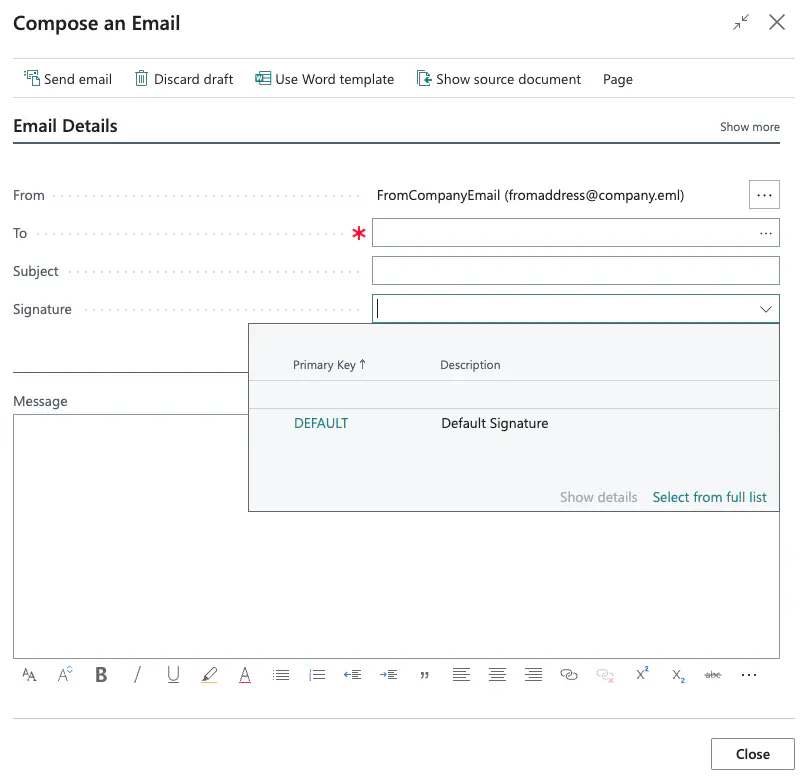
When composing an email through the Business Central email composer:
- After the Subject field, you will see a Signature dropdown.
- Select the signature you want to apply. The signature is appended to the bottom of the email body immediately.
- To change signatures, select a different one from the dropdown. The previous signature is replaced.
- To send without a signature, leave the field blank.
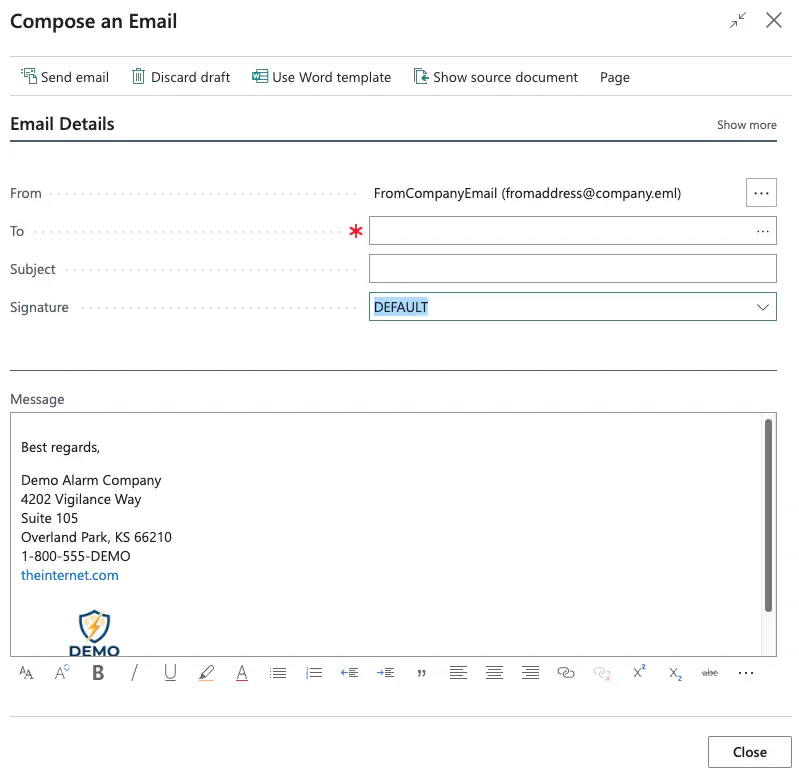
Any data tags in the selected signature are resolved with live company and user data at the moment you apply the signature.
Example Population
Permissions
Two permission sets are included:
| Permission Set | Intended for | Access |
|---|---|---|
| Company Email Signature - Admin | Administrators | Create, read, update, and delete signatures; access the list and card pages. |
| Company Email Signature - User | All email users | Read signatures so they can be applied from the email composer. |
Assign Company Email Signature - User to anyone who sends email from Business Central. Assign Company Email Signature - Admin to whoever manages the signature library.