Bank Deposit Restrictions
Bank Deposit Restrictions — User Guide
What this does
This extension adds a safety toggle to Bank Deposits so that receipts get applied cleanly to open invoices — without anyone accidentally applying a deposit to a payment or credit memo, and without having to hunt for the apply action manually.
It only affects Bank Deposits. No other journal (Cash Receipt Journal, General Journal, etc.) is touched, and there’s no global setup — everything is controlled per-deposit.
The “Restrict Functions” toggle
Every Bank Deposit header has a new field: Restrict Functions.
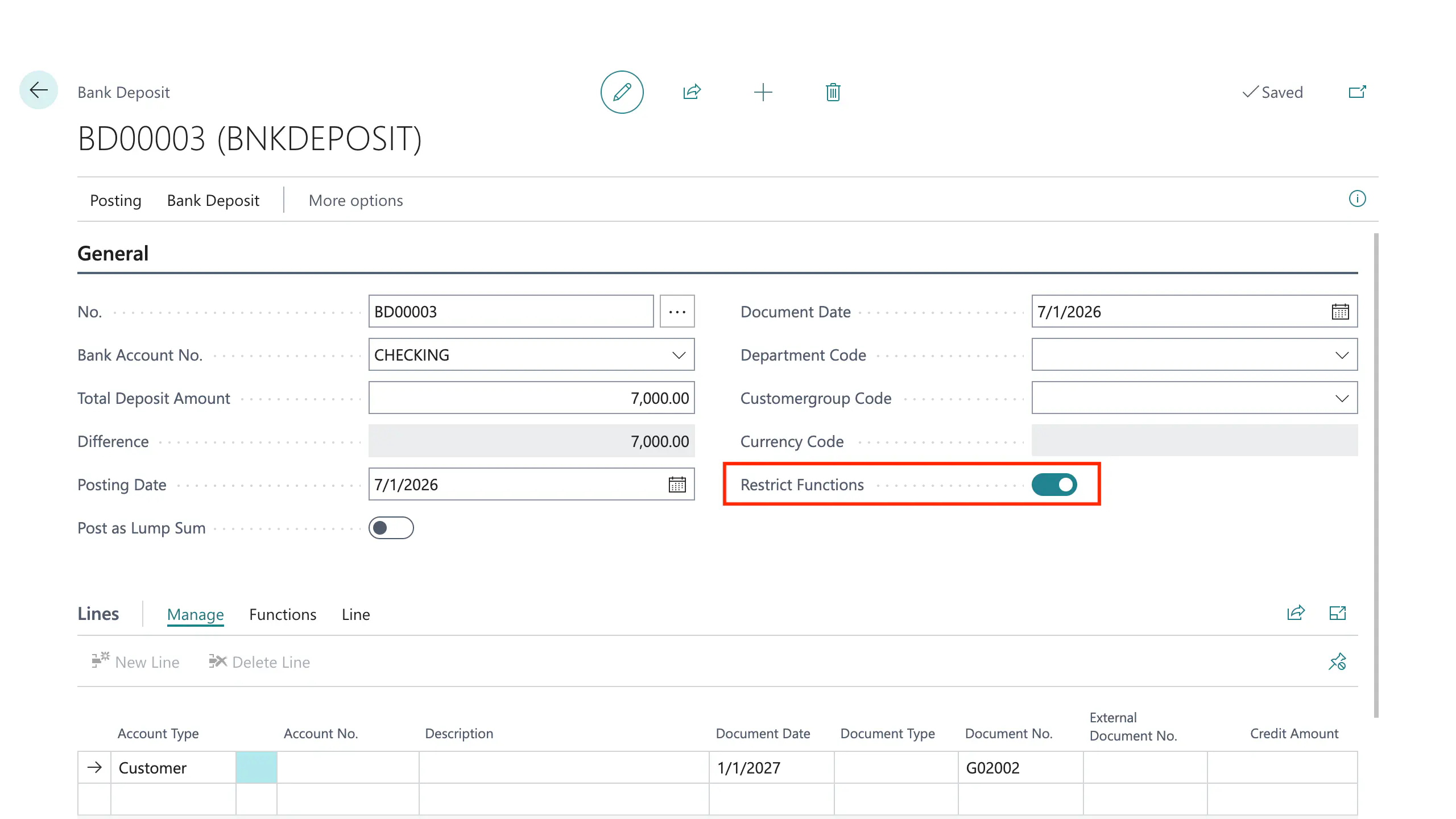
- When permissions are assigned to the user, the toggle is on by default for every new deposit.
- You can turn it off for an individual deposit if you need to temporarily bypass the restrictions below — for example, importing lines from another system, or a one-off entry that doesn’t fit the normal pattern.
- Turning it off only affects that one deposit. It doesn’t change anything else, and it doesn’t need to be turned back on for other deposits to be protected.
You’ll find it on the Bank Deposit card, in the General section.
What happens the Restricted Function toggle is on
1. Lines can only be Customer or Bank Account
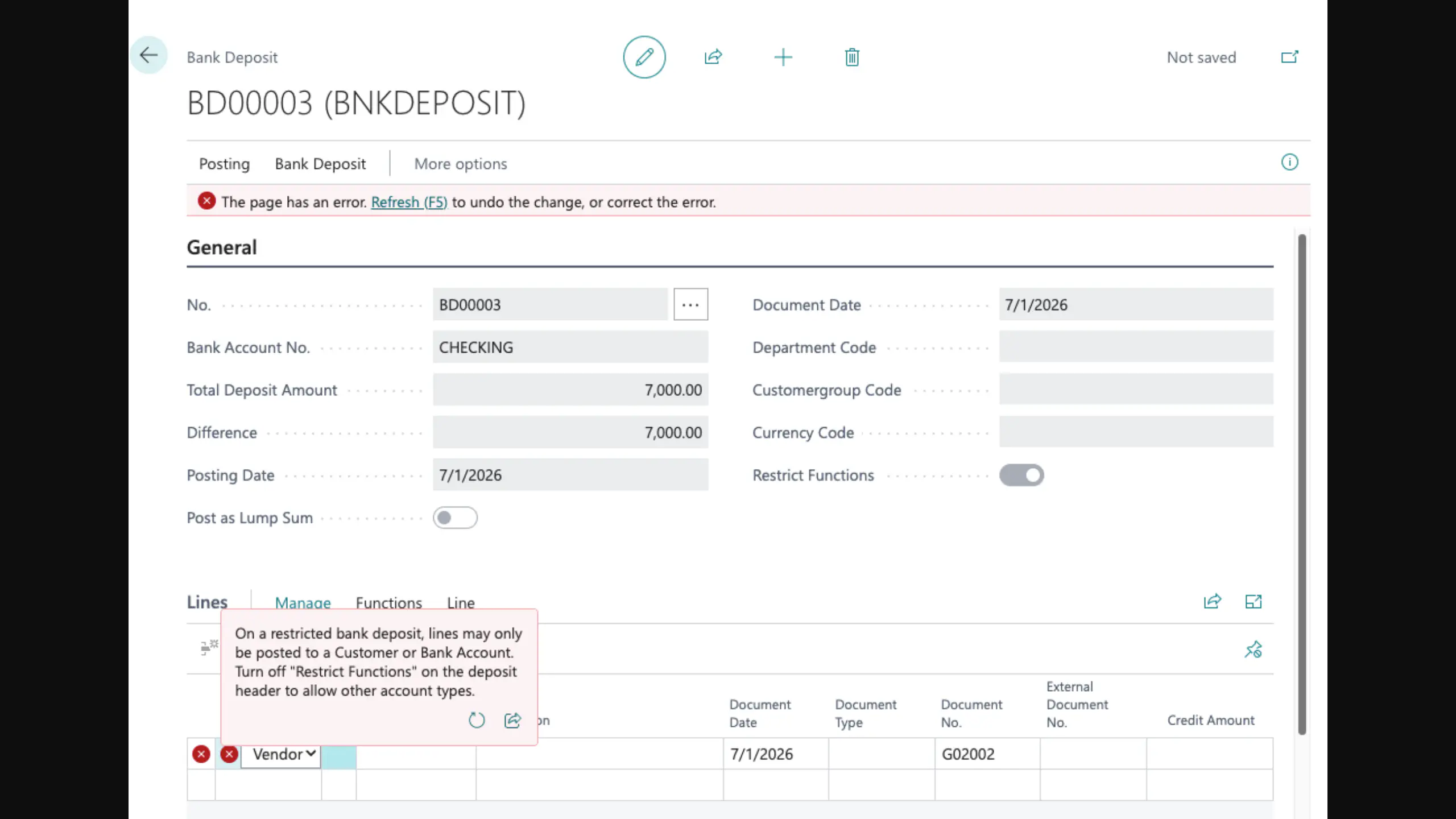
If you try to set a line’s Account Type to anything else (G/L Account, Vendor, Employee, etc.), you’ll get an error right away. A new line automatically starts as a Customer line, since that’s the most common case.
Bank Account lines are for the holding-account workflow: money lands in a holding account first, and a separate deposit into the real bank account is entered once the funds actually clear, so the real account matches the bank statement.
2. Entering a Credit Amount on a Customer line opens the apply grid automatically
As soon as you type an amount into a Customer line’s Credit Amount field, the Apply Customer Entries window pops up so you can pick which invoice the receipt belongs to. You don’t need to remember to click “Apply Entries” yourself.
Bank Account lines never do this — entering an amount there just works normally.
3. The apply grid only shows entries you can actually apply to
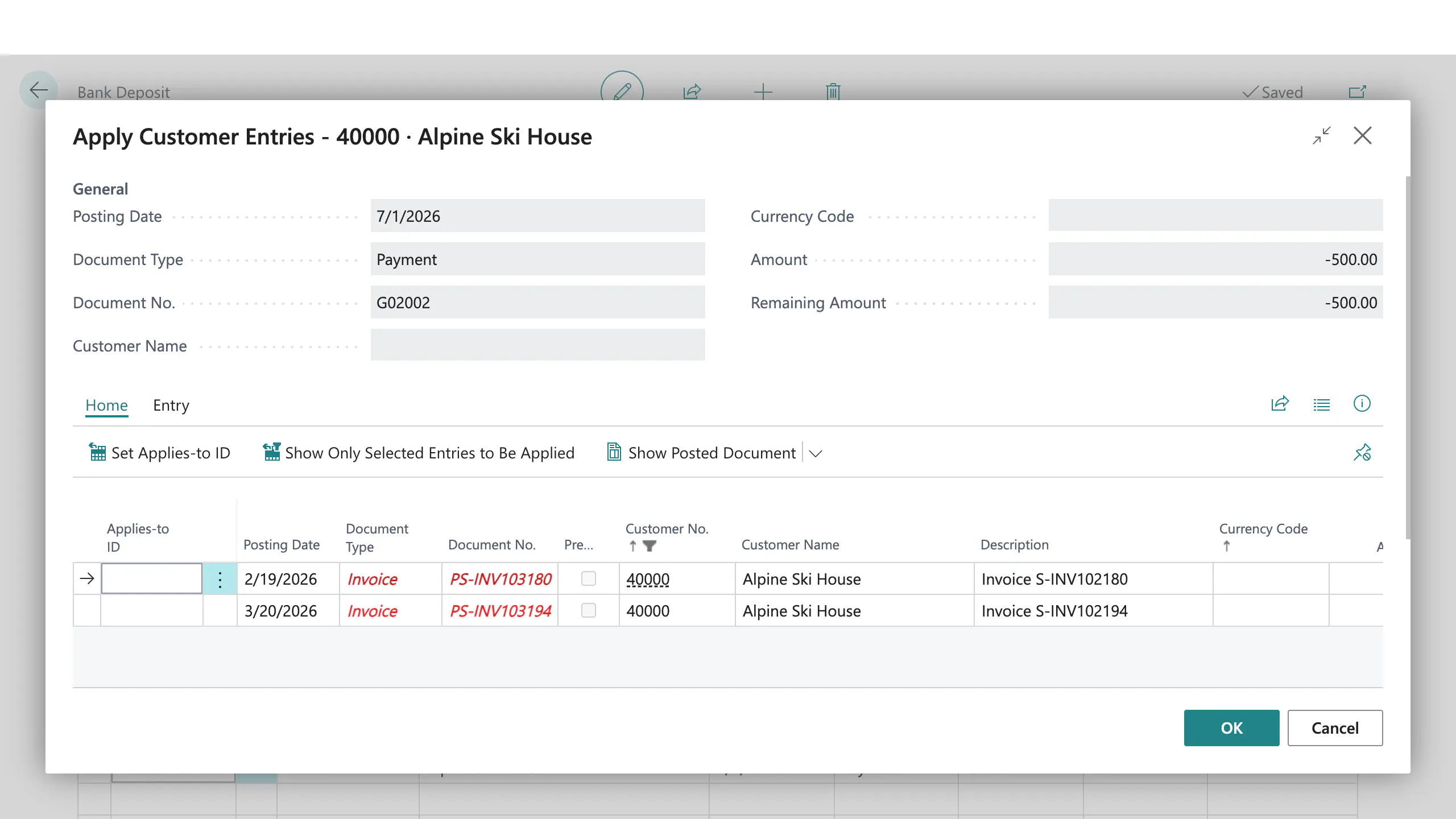
The window that opens is filtered down to entries with a positive remaining balance — in practice, open invoices. Payments and credit memos (which always have a negative remaining balance) won’t show up, so there’s no way to accidentally apply a deposit to one of those.
This filter applies whether the grid opens automatically or you open it yourself from Functions > Apply Entries.
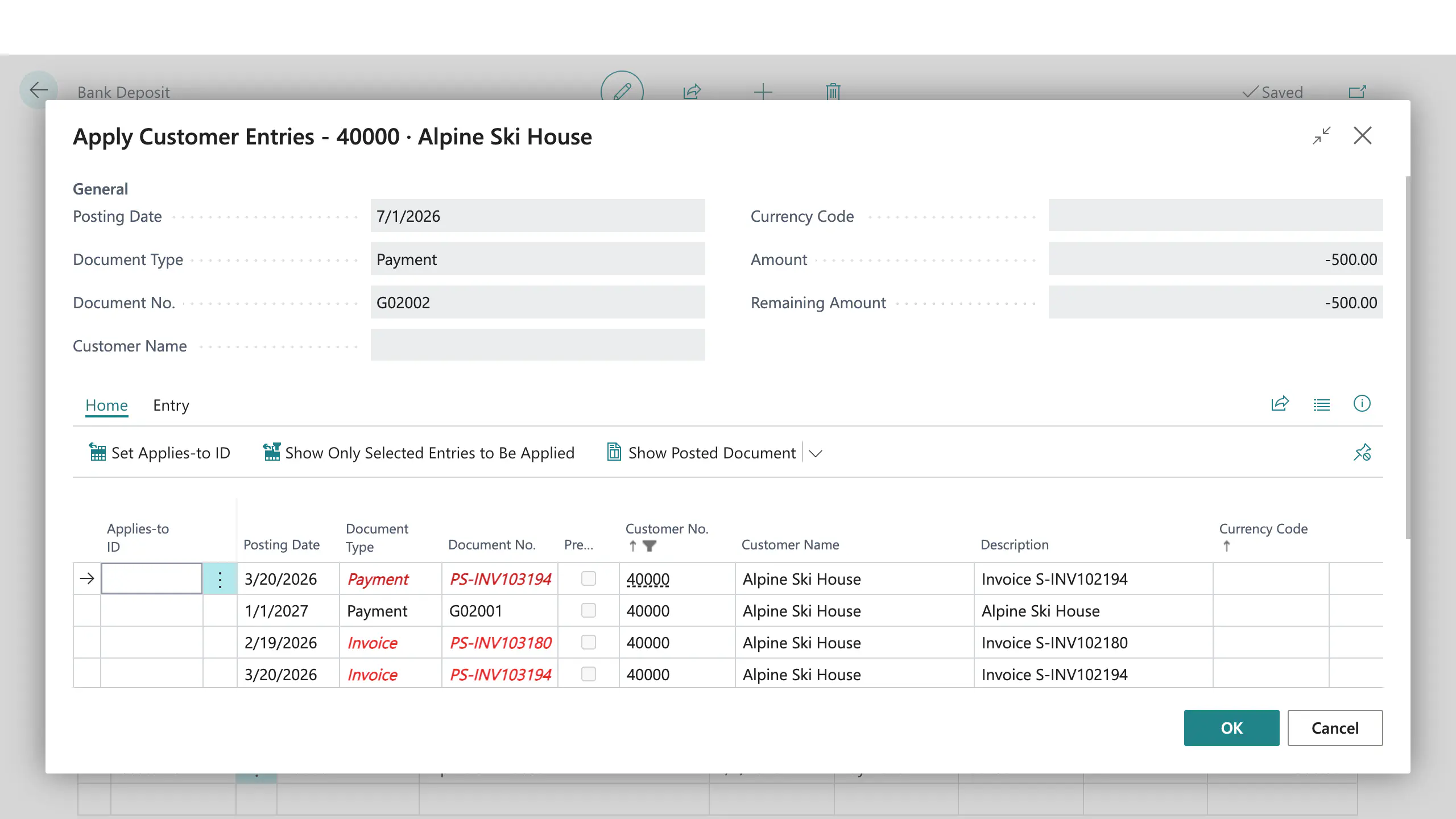
If the feature is not installed, the Apply Entries grid may look as follows
While when turned on, only the appropriate lines would show
4. Changing the Credit Amount clears the old application and starts over
If you go back and change the amount on a line that’s already been applied, the old application is removed and the filtered grid reopens automatically so you can re-apply against the new amount. This keeps the applied amount from silently getting out of sync with what’s actually being deposited.
What happens when the Restricted Function toggle is off
Nothing. The deposit behaves exactly like a standard Bank Deposit — any account type is allowed, and nothing opens automatically. Turning the toggle back on re-enables all of the above for that deposit.
A safety net you won’t normally see
Even if a deposit’s lines were created another way — an import, an API call, or a config package — and the toggle is on, posting the deposit double-checks the same rules: only Customer/Bank Account lines, and no line applied to a payment or credit memo. If something slipped through, posting stops with an error instead of letting bad data through. Day to day, if you’re using the page normally, you shouldn’t ever hit this — it’s there for the edge cases.
For administrators: the permission set
This extension adds a permission set called DIE Bank Deposit Restrictions
(DIE Deposit Restrict). It needs to be assigned to any user who should get
the behavior described above — it’s not assigned automatically just by
installing the extension.
- If it’s assigned: the user gets everything on this page — the toggle, the account type check, the auto-apply grid, all of it.
- If it’s not assigned: Bank Deposits works exactly like it did before this extension was installed, for that user specifically. The Restrict Functions field won’t even be visible on the deposit header for them, and nothing about how they use Bank Deposits changes or breaks. There’s no error, no broken page — it’s simply as if the extension weren’t there.
In other words, forgetting to assign this permission set doesn’t put anyone at risk of a broken screen — it just means that user doesn’t get the protection. Since the whole point is to prevent deposits from being applied to the wrong entries, we’d recommend assigning it to everyone who works with Bank Deposits, rather than relying on some users having it and others not.
To assign it: Users page → select the user → Permission Sets →
add DIE Deposit Restrict. It can also be added to an existing role via a
permission set extension if you manage access that way.
A couple of things that can look surprising (but are normal)
- “Amount to Apply” shows the invoice’s full remaining amount, not the deposit amount. This is standard Business Central behavior, the same as the Cash Receipts Journal — the field is a starting suggestion, and you can type in a smaller number if you’re only partially paying that invoice. Posting itself always limits what’s actually applied to the amount of the deposit line.
- The apply window opens as a pop-up you need to close (or pick an entry and confirm) before you can keep working on the line. That’s expected — it’s the same window Business Central always uses for applying entries, it’s just opening for you automatically instead of waiting for you to click the action.