EdgeDX Video Analytics Devices
This documentation instructs users on how to configure their EdgeDX video analytics devices via a browser window by logging into the device. Users will be instructed on how to configure the device to send alarm signals to Matrix when motion is detected. See the Add Stream documentation for instructions on how to data enter cameras within Matrix.
Important
This document contains supplemental documentation intended to be used in conjunction with your EdgeDX user manual. This document assumes the user is familiar with the setup and use of their device and has a copy of the applicable manual nearby to reference when necessary.
Please Note: Unless otherwise stated, the fields mentioned within this document are required for correct setup. If any of these fields are not available to you, you may require a software update. Contact the manufacturer for additional information.
The screenshots within this documentation are of the browser interface for an 8-channel EdgeDX AI Bridge. Your interface may look different or have different options available. Be sure to consult your manual to confirm you are updating the correct settings.
Before proceeding to the following setup instructions, access your device from your browser.
SMTP configuration
This section instructs users on how to create an Action Preset used to communicate with Matrix when triggering signals. See the Stream Management documentation for more information on camera SMTP settings.
Perform the following steps to create an Action Preset.
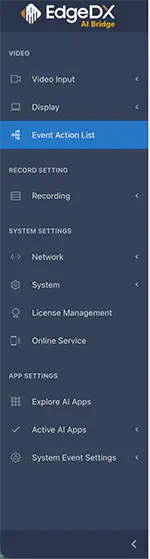
- Select the Event Action List menu option.
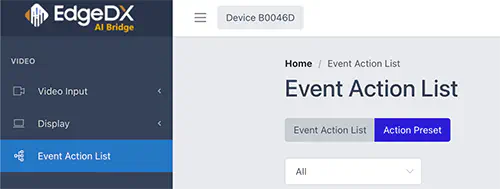
- Select the Action Preset option.
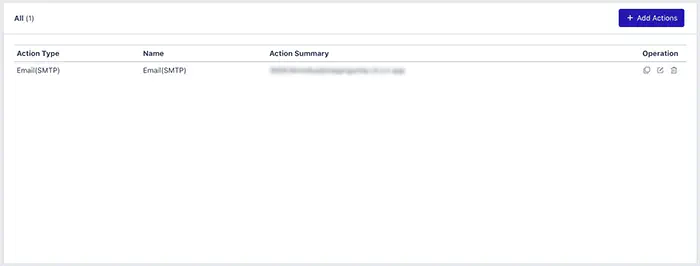
- Select the Add Actions option.
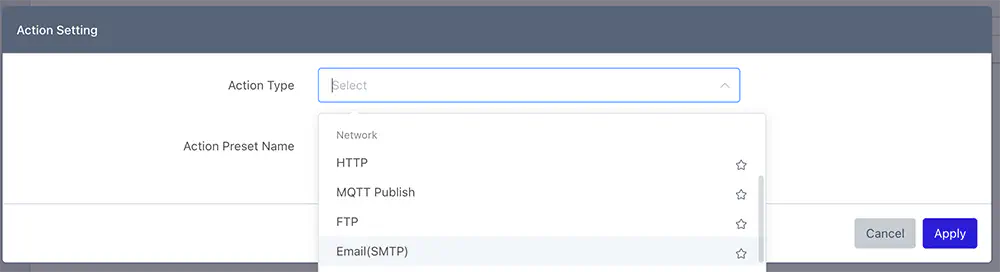
- Select the Email(SMTP) option from the Action Type dropdown.
- If desired, populate the Action Preset Name field with a descriptive name for the action.
- Populate the Sender Name field with the Recipient address generated under the stream’s SMTP Settings (The EdgeDX uses the Sender field to identify the source stream to Matrix).
- Select CH Channel from the Token dropdown.
- Select Use to populate the Email Title with the channel placeholder.
- Populate the Email Title field with the following text:
Network Video Recorder: Event on Channel Dpreceding the channel placeholder.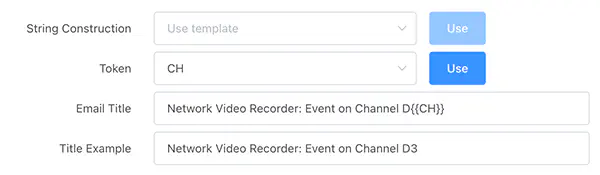
- Select the Attach Snapshot checkbox.
- Select the New option next to the SMTP Server section.
- Populate the Name field with a descriptive name for the server.
- Populate the first SMTP Server field with the Server address generated under the stream’s SMTP Settings.
- Populate the second SMTP Server field with the Server Port number generated under the stream’s SMTP Settings.
- Deselect the SMTP Authentication checkbox.
- Select Submit.
- Select Apply to complete creating the Action Preset.
Video input
This section instructs users on how to add camera streams to the EdgeDX device. Prior to completing these steps, the cameras should be data entered on the account via the Add Stream option available within Matrix Camera Setup.
- Select the Video Input menu option.
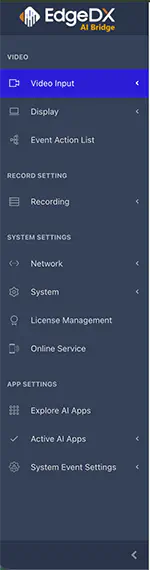
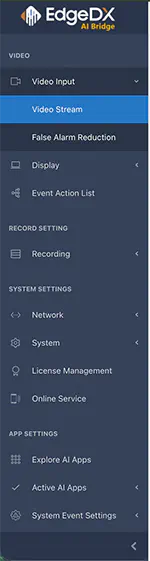
- Select the Video Stream menu option.
- Select an available blank row. Channel capacity varies by model; consult your device manual.
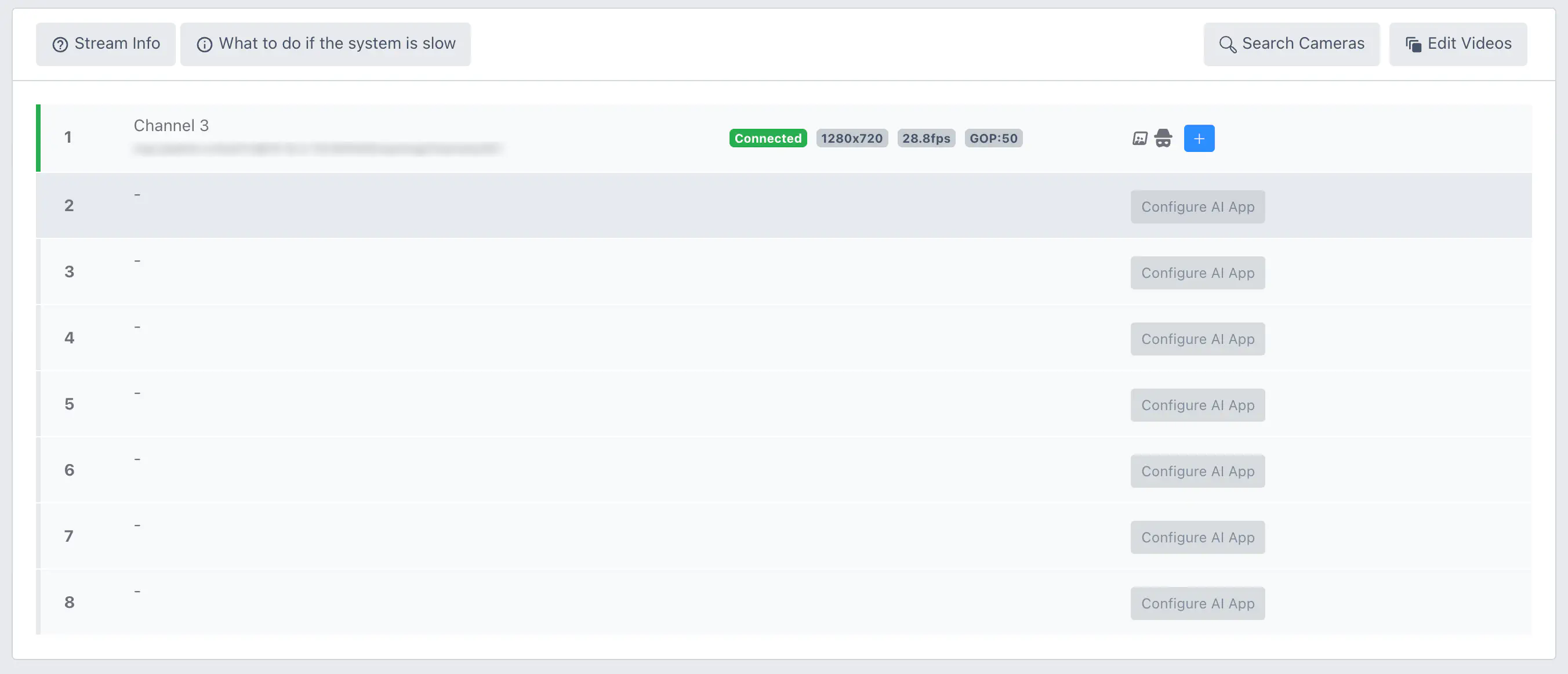
- Populate the Channel Name field with a descriptive name for the camera.
- Populate the URL field with the camera’s full RTSP path information.
- For example:
rtsp://username:password@10.10.1.101:554/Streaming/Channels/1
- Select Submit to add the camera.
- Select the plus icon next to the camera’s row.
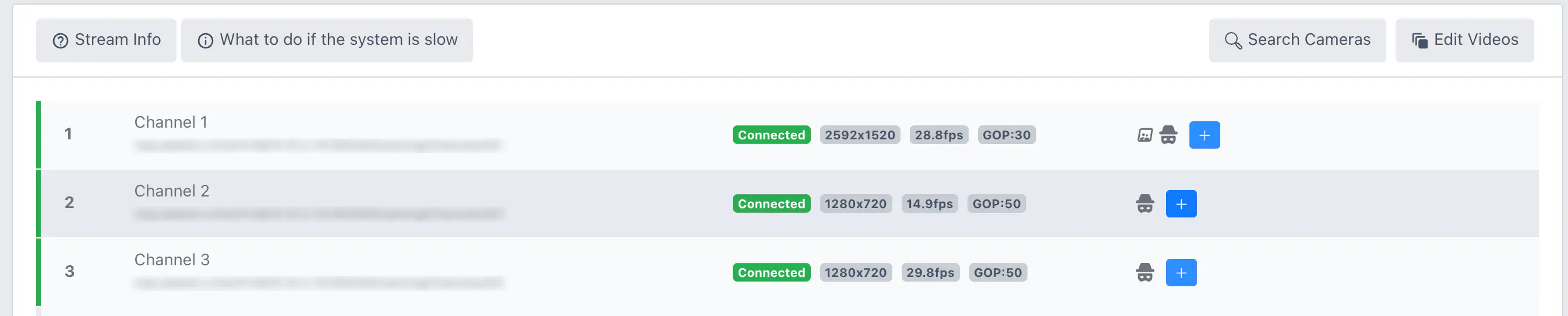
- Select the analytics you wish to assign to the camera.
- The following screenshots use Intrusion Detection as an example.
- Select Add Rule.
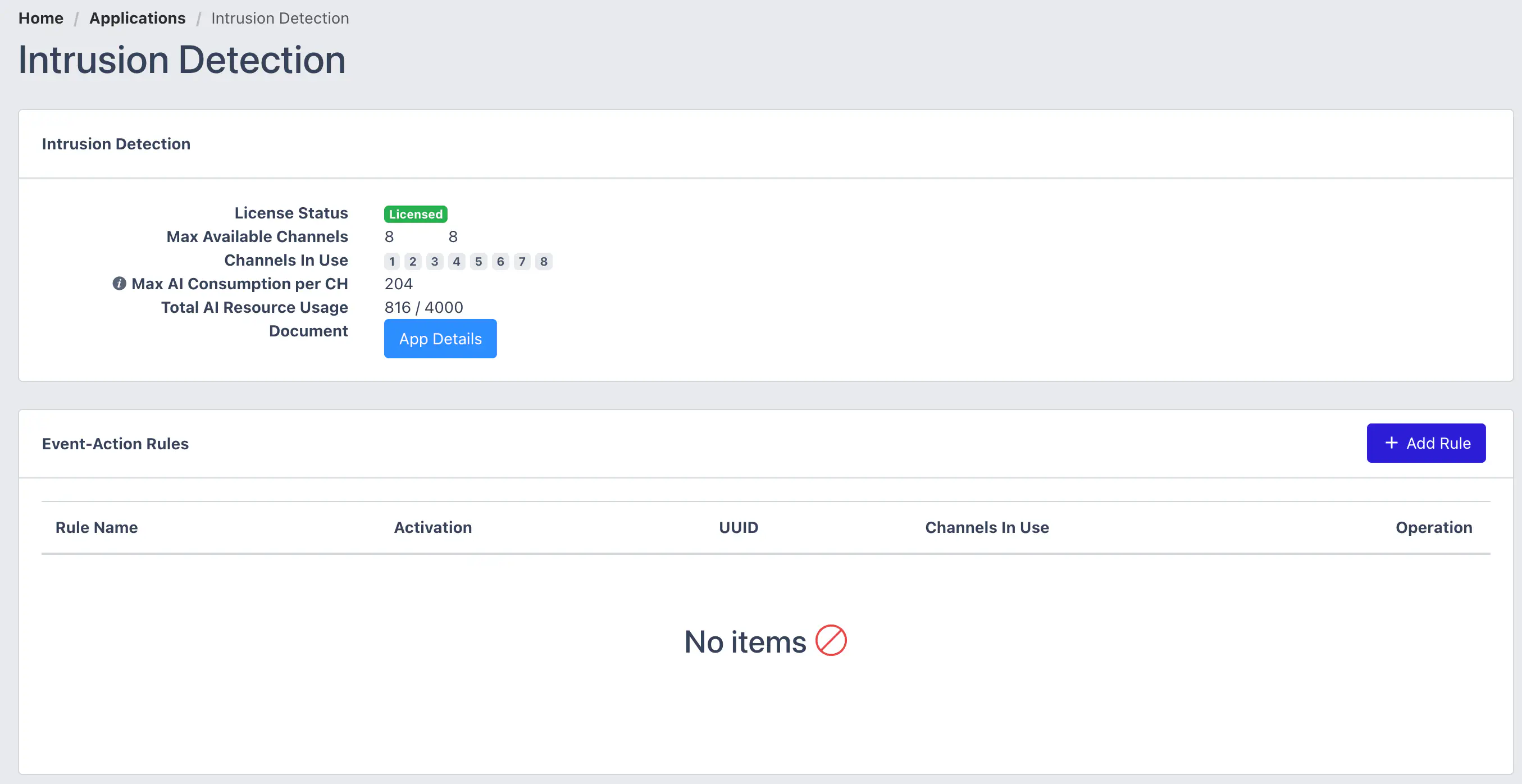
- Select Add from the Action Setting option.
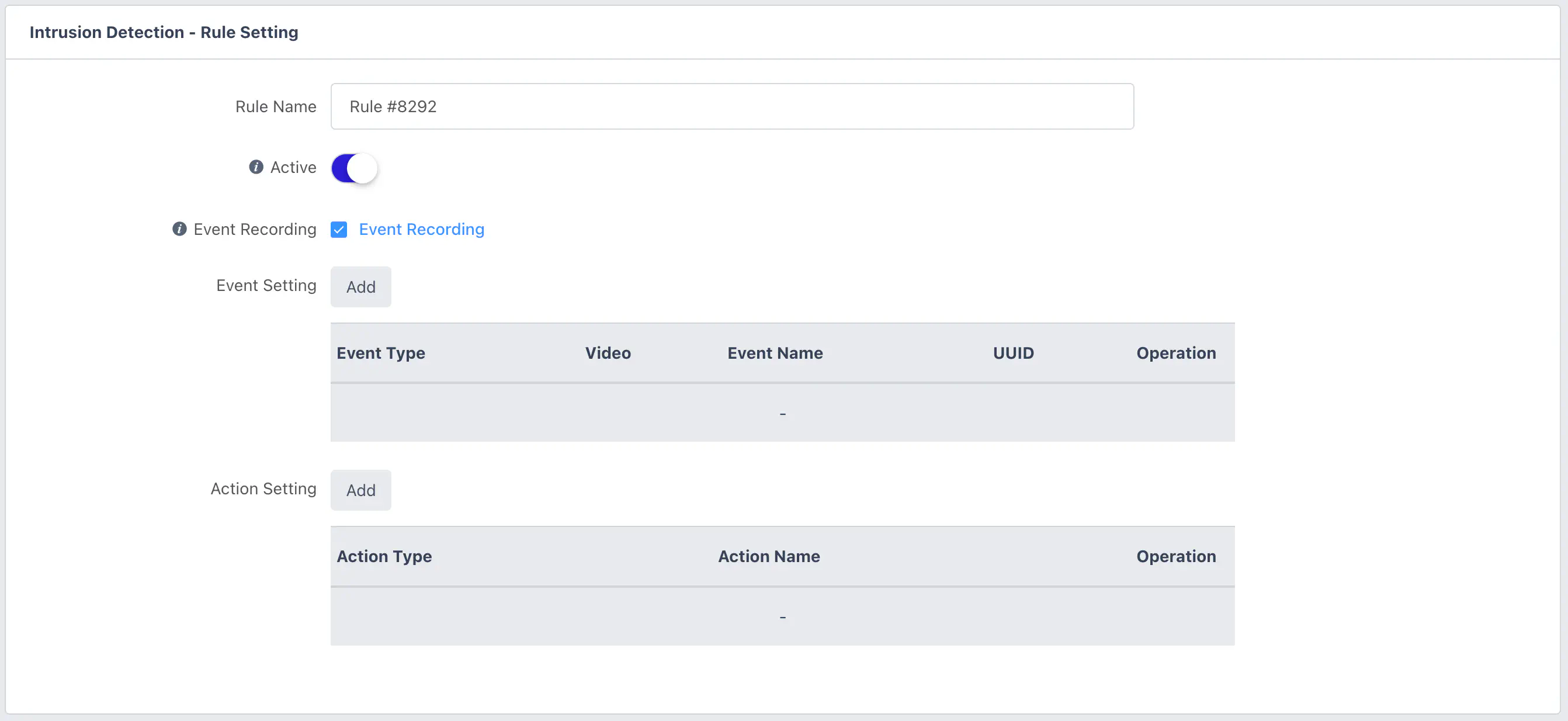
- Select Email(SMTP) from the Action Type dropdown.
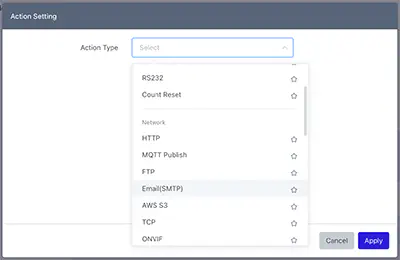
- Select the Action Preset created above from the available options.
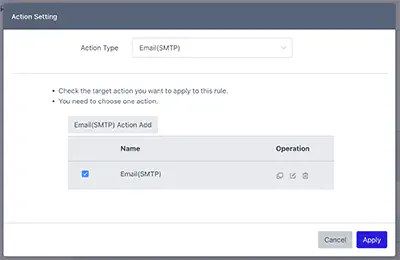
- Select Apply.
- Configure all other analytics settings as desired.
- Select Submit.
Complete the above steps as many times as necessary to add the applicable cameras to the device.
After completing the above instruction sets, your EdgeDX device is now configured to send an email when motion is detected.